Plan your monthly budget
Set this month’s income, give each category a planned amount, and watch two numbers: left to budget (income not yet planned) and left to spend (income less what’s gone out).
Set your income
On the Budget page, Set fixed income is what you can count on each month, such as your salary. Anything else you record as income (a side job, a refund) is added on its own as Other income.
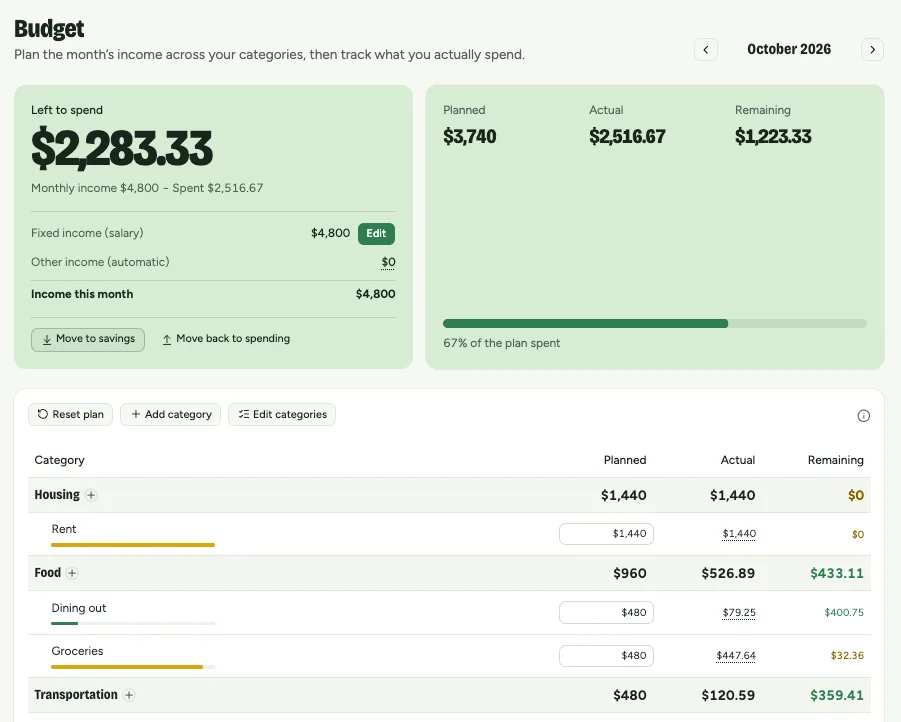
This is the Budget page with a month planned: income and left to spend at the top, then each group and category with its planned, actual and remaining amounts.
Plan each category
- 1
Click a planned amount and type how much you mean to spend on that category this month.
- 2
+ beside a group adds a category to it. Edit categories renames, reorders or removes them.
- 3
Keep an eye on Left to budget: when it reaches zero, every dollar of income has a job.
Track as you go
Each transaction adds to its category’s actual. Bars turn amber when a category reaches 90% of its plan and red once it goes over. Click an actual to see the transactions behind it.
- Rent$0 / $1,850
- Groceries$0 / $500
- Transit$0 / $120
- Dining out$0 / $180
- Phone & internet$0 / $130
- On track
- Close to the limit
- Over budget
Next month
- 1
Use the arrow at the top of the Budget page to go to next month. It starts with nothing planned.
- 2
Copy last month’s plan brings its categories and amounts forward.
- 3
Reset plan sets every amount back to 0 so you can plan it afresh. Neither touches your transactions.